Vector vs Raster Logos: What Designers Need to Know
Learn the key differences between vector and raster logos—how they’re built, when to use each, and why vector formats are essential in professional logo design. Perfect for graphic designers, brand creators, and anyone working with logos.
What’s the Difference Between Vector and Raster Logos?
The short answer:
Vector logos are resolution-independent and can scale to any size without losing quality. Raster logos are pixel-based and lose clarity when resized.
For professional logo design, vector formats are the industry standard.
If you’re working on brand identity projects, understanding the difference between vector and raster formats is essential. It directly impacts how logos are used, exported, and delivered across different platforms and applications.
In practice, this becomes especially important when preparing logo files for client delivery, where choosing the correct formats and exporting them properly makes a significant difference.
What Are Vector and Raster Logos?
Before comparing the two, it’s important to understand how each format works and where it’s used in real-world design workflows.
Raster Logos (Pixel-Based)
Raster logo consists of small colored squares, known as pixels. These files are resolution-specific because of their fixed number of pixels. And if they are enlarged beyond their native resolution, they become blurry and pixelated.
Common raster formats
JPEG (.jpg) – Often used for web, but loses quality with compression
PNG (.png) – Supports transparency; great for online use
GIF (.gif) – Limited to 256 colors; rarely used for modern branding
TIFF (.tiff) – High-quality but bulky; more common in photography
Verdict: Always design logos in vector format. Then export raster versions when needed.
Vector files provide flexibility, scalability, and long-term usability. Raster files are used for specific applications where fixed-size assets are required.
Why Vector Formats Are Non-Negotiable in Logo Design
A logo needs to function across multiple environments, from small digital interfaces to large-scale print.
Vector formats make this possible.
Real-world examples:
A brand applying its logo to vehicle graphics requires scalable vector files
A website using responsive design benefits from SVG logos that stay sharp
Print production requires vector files to maintain clarity and accuracy
Without vector files, logos become limited in how they can be used, adapted, and reproduced.
How This Relates to Logo Packages
When delivering a logo to a client, you are not providing a single file. You are delivering a complete logo package.
A professional logo package includes both vector and raster formats, allowing the logo to be used across different environments.
Vector files such as AI, EPS, and SVG are used for scaling, editing, and print
Raster files such as PNG and JPG are used for digital applications and quick use
If you want a full breakdown of how to create, and what to include inside a logo package, read:
Photoshop is raster-based. Creating logos here limits scalability and flexibility from the start.
Creating and Exporting Logo Files in Adobe Illustrator
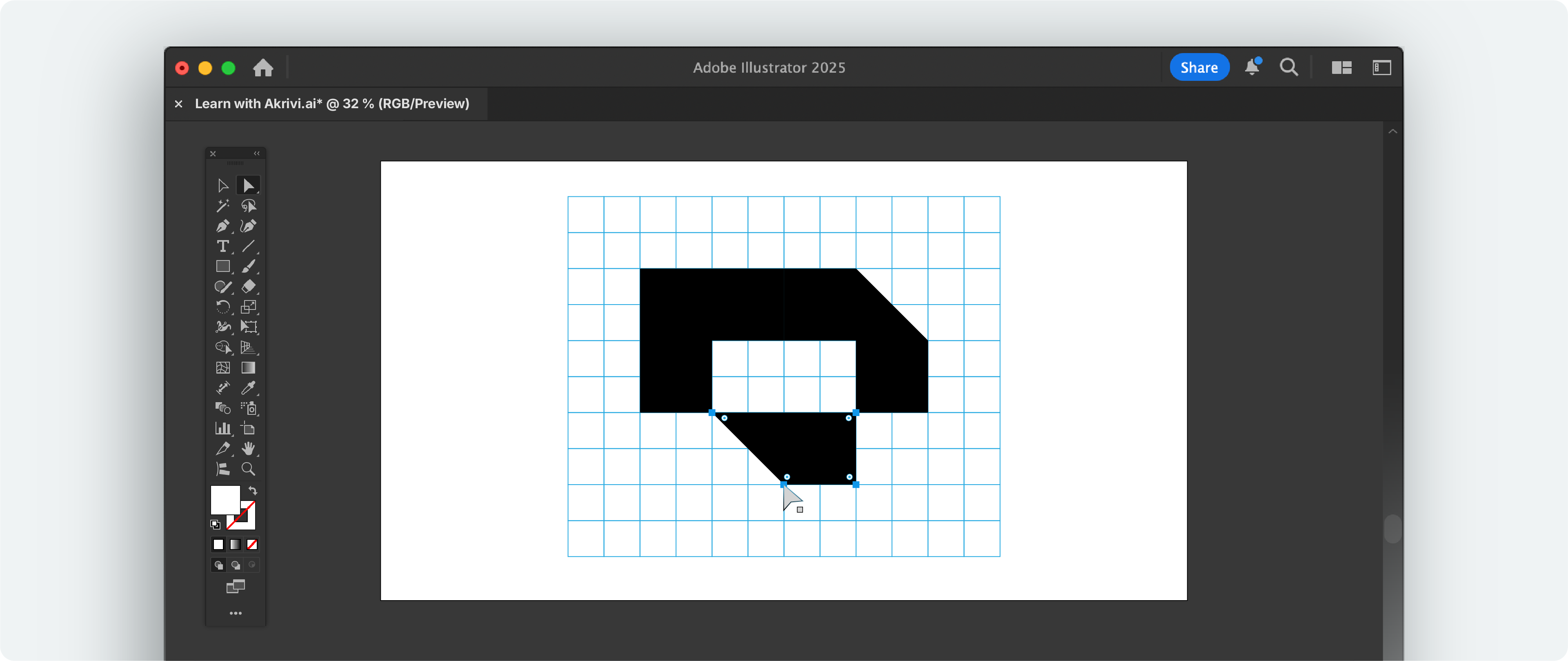
Adobe Illustrator is the industry-standard tool for creating vector logos. It allows you to design logos using scalable paths and shapes, ensuring your work remains sharp and editable at any size.
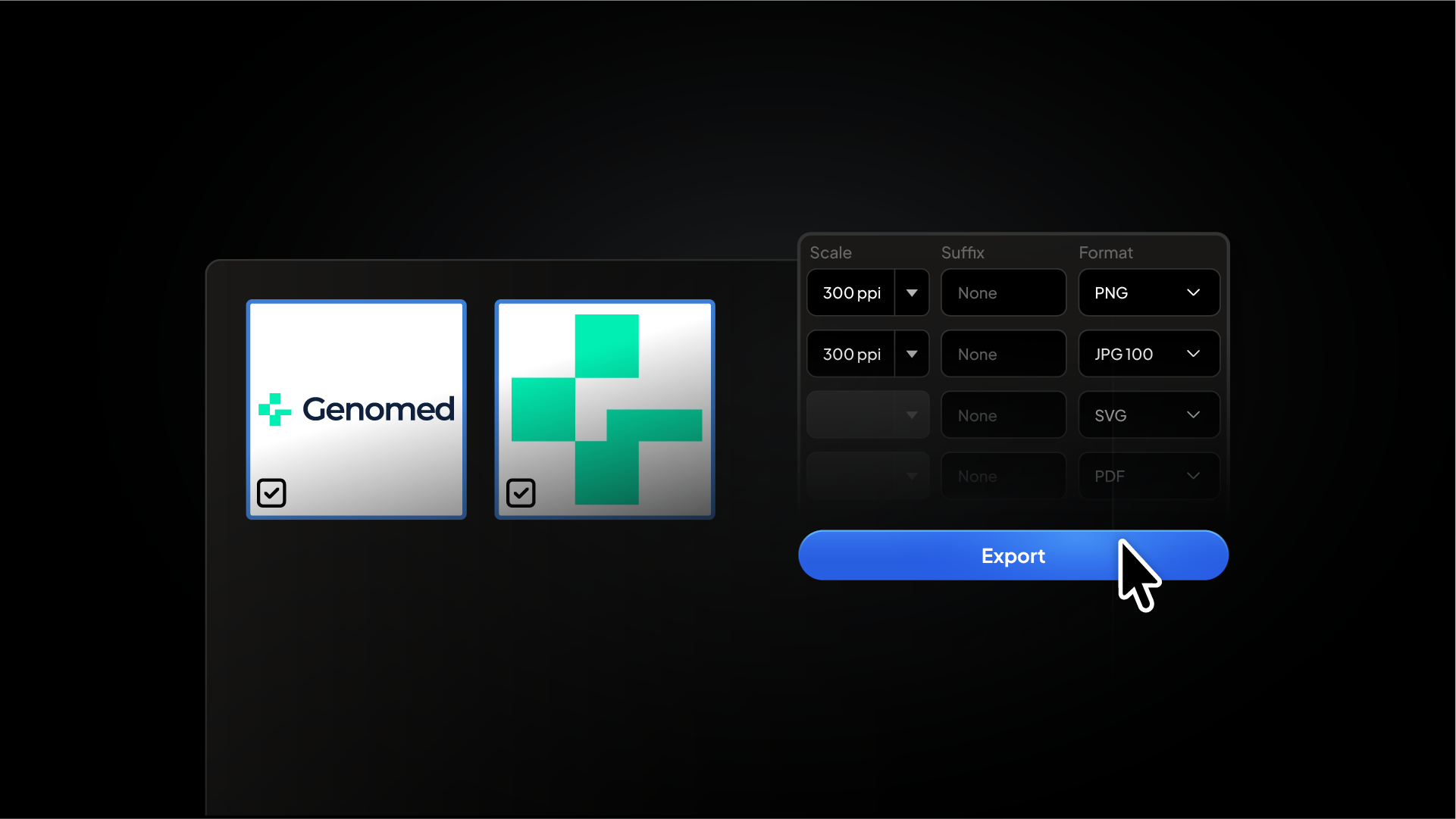
It is also where the full logo package is prepared. Once your logo is created, Illustrator is used to export the different file formats required for client delivery, including SVG, PNG, EPS, and PDF versions.
Understanding how to export these formats correctly is just as important as creating the logo itself. Each file type serves a different purpose depending on how the logo will be used.
If you want a complete step-by-step workflow for exporting logo files for clients, you can read the full guide here: