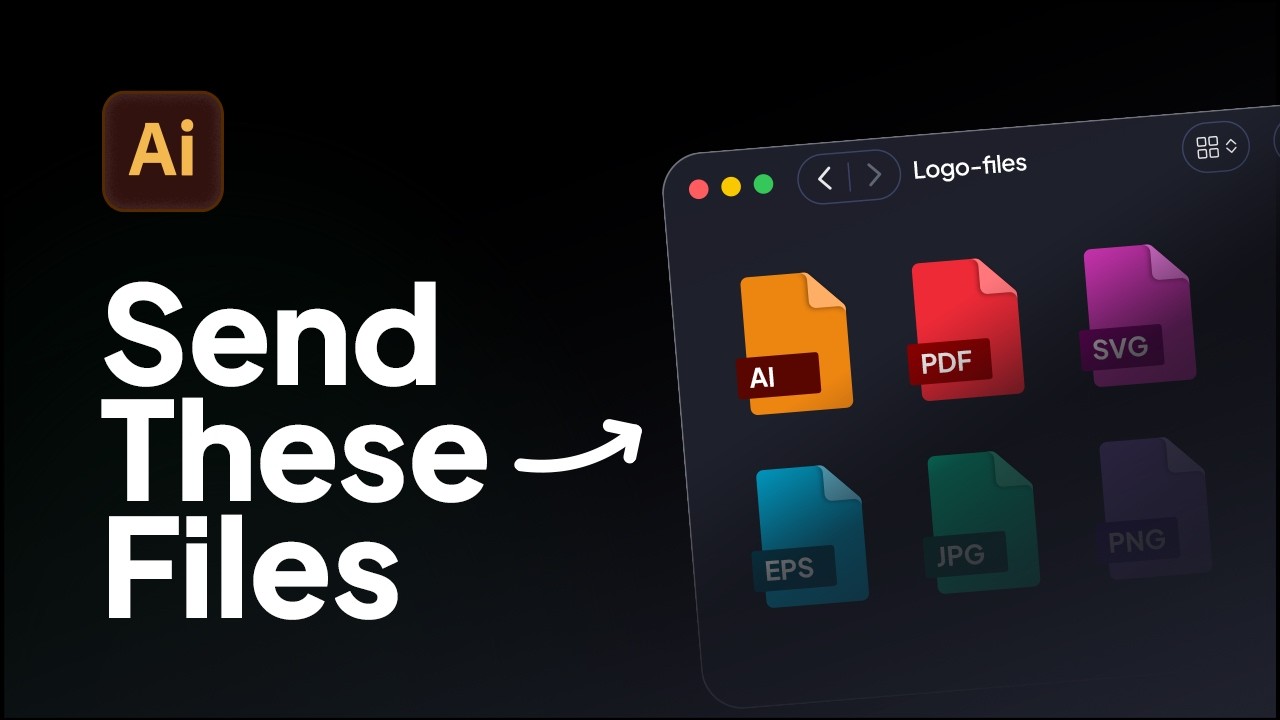
How to Export Logo Files in Adobe Illustrator | Web & Print Formats
Learn how to export logo files for clients in Adobe Illustrator using the correct logo variations, artboard setup, and file formats for professional delivery.
Here’s the FASTEST and easiest way to create professional brand guidelines in Adobe Illustrator. In this video, I show you how to generate complete, client-ready brand guidelines using Akrivi Guideit — a brand guidelines generator built specifically for professional brand identity designers.
Every brand designer knows that creating brand guidelines is the longest and most time-consuming part of a branding project. But that has finally changed.
In this video, I’ll show you the fastest and easiest way to create brand guidelines in Adobe Illustrator and how you can generate professional brand guidelines in seconds, even for free.
I previously made a video called How to Create Brand Guidelines in Illustrator, where I built everything manually from scratch. While that works, it’s slow and inefficient.
This method is by far the fastest way to create brand guidelines, not only in Illustrator, but in general.
Here inside Adobe Illustrator, we’re using Akrivi GuideIt, a brand guidelines generator included in Akrivi Studio.
You’ll see a Brand Assets panel, where we upload and manage:
To start, I select the logo mark and click Set Logo Mark.
Illustrator registers it instantly.
I repeat the same steps for:
Next, I enter the brand name and choose the fonts:
For brand colors, I simply paste in the HEX codes, and repeat for each color.
Once all brand assets are added, we’re almost ready to generate the brand guidelines.
Before generating, we switch to the Templates tab.
Here you’ll see a library of automated brand guideline templates:
The default template is Corporate, but my personal favourite is Tech.
All we do now is click Generate.
In under a minute, the brand guidelines are fully generated.
Nothing is edited or cut. This is the full process.
You’ll see:
All relevant pages are generated automatically, so there’s no risk of missing anything.
You can then simply add brand imagery if needed to complete the document.
I’ve also generated the same brand using different templates:
You can customize font sizes and layouts at any time to match the brand perfectly.
One of the most frustrating parts of brand guidelines is having to re-export the file every time a client requests a small change.
Here’s how to avoid that.
I save the Illustrator file inside Google Drive.
Once it finishes syncing, the brand guidelines are instantly available online.
This is exactly what your client sees. Simple and clean.
If a client requests a logo or color change, you don’t need to manually update every page.
You simply:
The brand guidelines update instantly.
This saves hours on every project.

Learn how to export logo files for clients in Adobe Illustrator using the correct logo variations, artboard setup, and file formats for professional delivery.
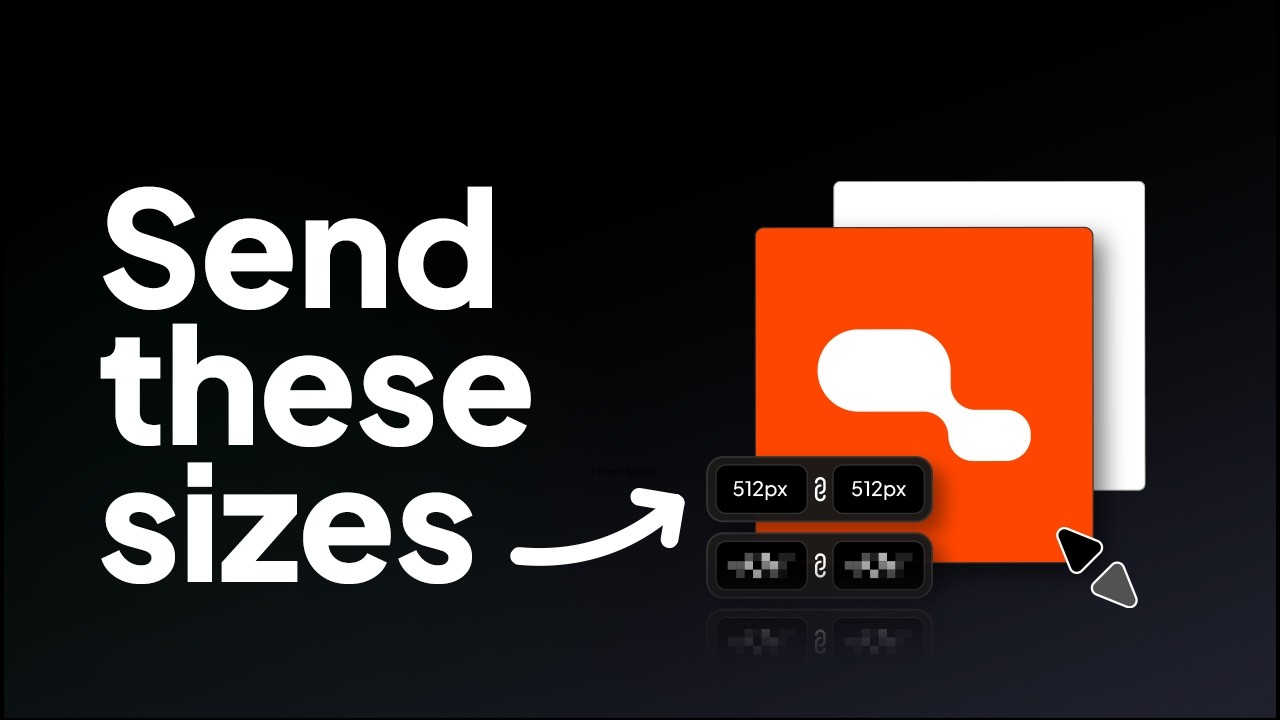
Learn the correct logo sizes to include in a logo package for professional client delivery.
Try all five tools free for 7 days, inside Adobe Illustrator.
7-day free trial · cancel anytime