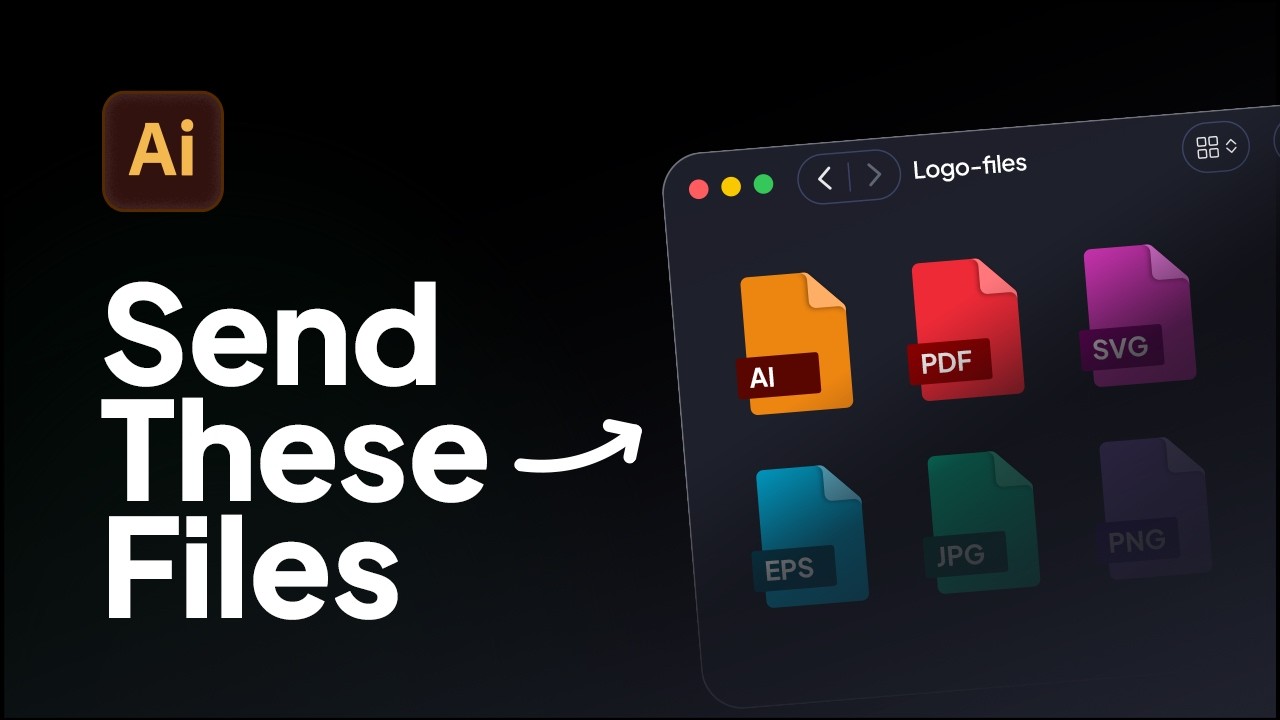
How to Export Logo Files in Adobe Illustrator | Web & Print Formats
Learn how to export logo files for clients in Adobe Illustrator using the correct logo variations, artboard setup, and file formats for professional delivery.
Learn how to create brand guidelines in Adobe Illustrator. If you want to save time, you can download the free brand guidelines templates.
You’ve just finished designing an awesome brand identity.
Now comes the part most designers dislike: creating brand guidelines.
In this video, I’ll show you a simple, structured way to create brand guidelines in Adobe Illustrator, using free templates to save hours of manual work. Make sure you stick around until the end.
I’ve also made a separate video on what to include in brand guidelines, which you can find linked in the description.
Before starting, I create a clear structure.
This brand guidelines will include six key elements, organised into pages and sections.
With that list ready, let’s begin.
I start by creating a new document at 1920 × 1080, which is a standard screen size and works well for digital brand guidelines.
Next, I create a margin system.
This foundational layout will stay consistent across all pages.
I place shapes in the top-left and bottom-right corners, align everything to the center, and then convert them into guides. These guides can be duplicated across all artboards to keep spacing consistent.
Next, I define the typography system.
Typically, this includes:
For a 1920 × 1080 layout, I set the header font size to 200pt.
To keep everything visually consistent, I scale the remaining text sizes using the golden ratio (1.618):
This approach creates a clean and balanced type hierarchy across the entire document.
With the base layout ready, I duplicate the artboards and begin creating cover pages for each section.
To keep spacing and alignment consistent, I copy a page with the most microtext and paste it in front on other pages. This ensures:
This step saves a lot of time later.
Now the brand guidelines start coming together.
I add:
Illustrator doesn’t support automatic page numbering, so I’ve included a script in the description to handle this.
At this point, about half of the brand guidelines are complete.
I then finish the remaining sections from the original list and refine the layout.
The final brand guidelines include:
All six core elements are clearly organised and easy to follow.
The completed brand guidelines have been cleaned up and simplified.
You can download these templates as:
I’ve also created an urban-style variation, ideal for brands using condensed fonts. This version is also available in both Illustrator and InDesign.
All download links are in the description.
Thanks for watching.
If you found this helpful, please like and share.
And if you want to see more videos on brand identity design and workflows, hit the subscribe button.
This transcript is designed to help designers create professional brand guidelines faster and with less manual work.
With Akrivi Studio, you can generate professional brand guidelines in seconds using Akrivi Guideit, the automated brand guidelines generator for Adobe Illustrator.
Upload your logo, fonts, and colors, choose a template, and click generate.
Try Akrivi GuideIt for FREE and automate your brand identity workflow.


Learn how to export logo files for clients in Adobe Illustrator using the correct logo variations, artboard setup, and file formats for professional delivery.
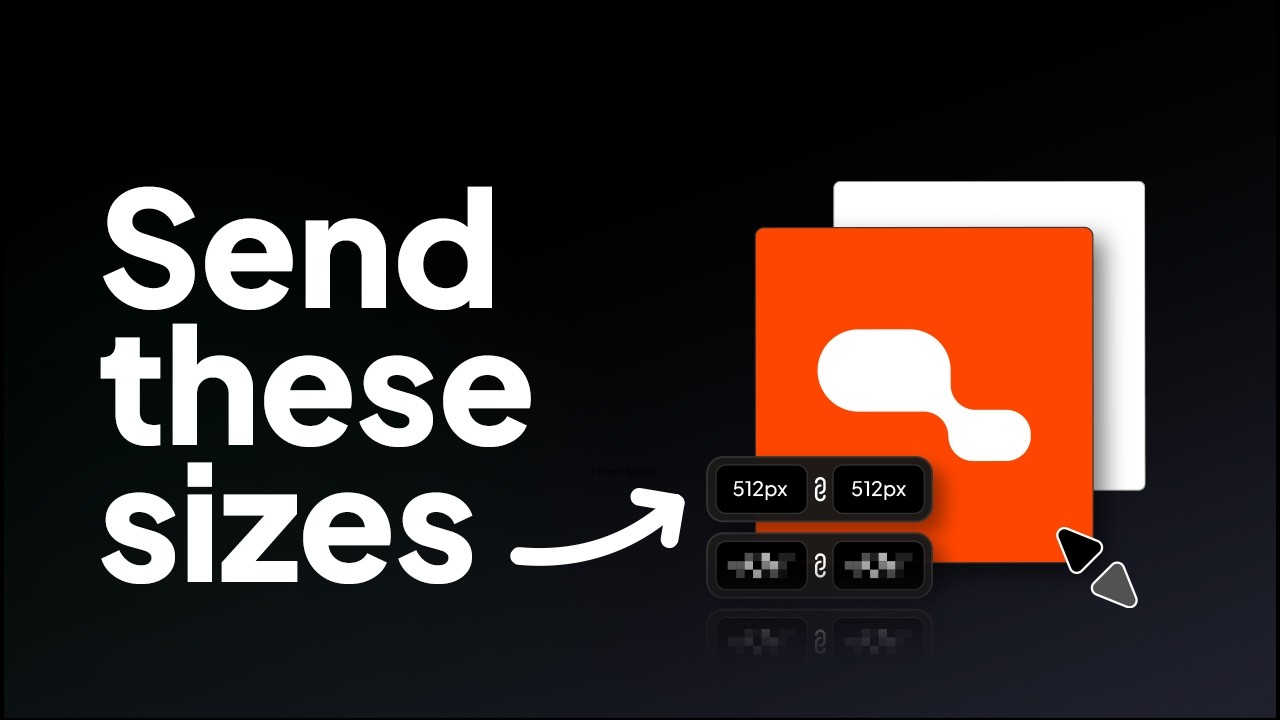
Learn the correct logo sizes to include in a logo package for professional client delivery.
Try all five tools free for 7 days, inside Adobe Illustrator.
7-day free trial · cancel anytime